
Usage
Click the move point toggle button to activate it.
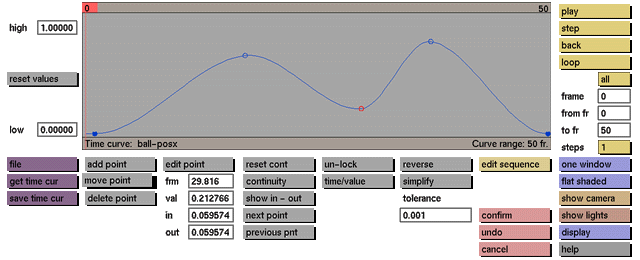
While this toggle button is active, select a control point by clicking the control point to activate it. Then move the point by holding down the middle mouse button and dragging it. If the show in - out toggle button is active, the small arrows that represent the derivatives of a control point are visible and can be modified. Select an arrow by clicking the points of the arrow. Then change the direction of the arrow by holding down the middle mouse button and moving the mouse up and down to rotate the arrow. To create a sharp angled bend in the time curve, switch off continuity before moving the arrows.
Comments
If you wish to restore the location of the moved point to its former location, use the undo button before making any other menu selections. Event points (solid blue color) can be changed only if the unlock toggle button is active.
See also
add point, delete point, edit sequence, edit point, undo, unlock, continuity, show in -out


